Showing posts with label ALM. Show all posts

Sunday, February 26, 2012

Visual Studio Code Metrics & Refactoring

Refactoring is a disciplined technique for restructuring an existing body of code, altering its internal structure without changing its external behavior.”  Martin Fowler

Using Code Metrics feature of Visual Studio (or Code Metrics Power Tools if you don’t have Premium or Ultimate edition) you can get some good information about which unit of code or components are candidates for refactoring.

Use this tool regularly in order to track refactoring opportunities. Check this MSDN article and this Post for usage.

Some metric hints you could use:

  1. Maintainability Index (< 40 or instance)
  2. Cyclomatic Complexity (> 15)
  3. Make a Top Ten Ranking of Refactoring Candidates by using: [Cyclomatic Complexity] * [LOC (Line of Code)] => Order By Desc

For valid ranges, check this Post.

PS: I will be working on how to get this metrics into a TFS Team Project Report.

Thursday, February 23, 2012

Scrum Daily Work Evidence in TFS – End of Day Evidence

A good Agile practice that I’ve personally tested is registering our daily work evidence using images. Source code images, screen images of our application, database tables, etc. Anything that could give other people a quick hint about our work.

Using TFS we can update daily Task status using Work Items. Having images associated and displayed with them is not as straight forward as it should be (like pasting images in Word or in an Email).

One recommended approach is to upload a very simple and lightweight PPT or Word document containing images of evidence for all team members to a folder in the project’s SharePoint site. This could be done under a folder called “Daily Evidence” or something. The name of the PPT/Word file could be the current date (02/23/2012) or such.

At the end of the day, a simple report could detail the status of tasks for every team member and have a link (calculated automatically) to the Evidence file in the SharePoint site.

End of Day Progress Report Sample

image

Using Reporting Services Subscriptions feature, you could also have this report sent by email automatically.

Saturday, January 28, 2012

CodedUI: Close Dialogs and Windows

UI automation could be a very very complex procedure. Several things could change between different executions, controls could be moved or renamed, etc.

Some simple things such as closing a dialog popup/window could be challenging..

Let’s try to recreate the problem. File/New Project in Visual Studio 2010, then select Windows Forms.

Add a button with the following handler on the click event:

MessageBox
private void button1_Click(object sender, EventArgs e)
{
    MessageBox.Show("Try closing me..", "Try closing me..", MessageBoxButtons.OKCancel);
}

Record a CodedUI test that opens our super simple WinForm App, click Button1 and then close the message box. Finally, add one last step to record that closes the Main Window.

Now run the previous CodeUI test and check how the test reports a successful execution. Note that your Message Box is still opened and your application is still waiting for input.

* I imagine that it should be a better way of working around this effect than the following. If you figure it out let me know :).

Let’s create a UIMapExtensions class (containing extensions methods of course)

UIMapExtensions
public static class UIMapExtensions
{
    public delegate void CloseTestControlCallback();

    public static bool CloseWindow(this UITestControl testControl, CloseTestControlCallback closeCallback)
    {
        var closeSuccess =
            testControl.WaitForControlCondition(
                tc =>
                {
                    closeCallback();
                    return !tc.Exists;
                }, 3000);
        return closeSuccess;
    }

    public static bool CancelDialog(this UITestControl testControl)
    {
        var closeSuccess =
            testControl.WaitForControlCondition(
                tc =>
                {
                    Keyboard.SendKeys("{ESC}");
                    return !tc.Exists;
                }, 3000);
        return closeSuccess;
    }

    public static bool AcceptDialog(this UITestControl testControl)
    {
        var closeSuccess =
            testControl.WaitForControlCondition(
                tc =>
                {
                    Keyboard.SendKeys("{ENTER}");
                    return !tc.Exists;
                }, 3000);
        return closeSuccess;
    }

    public static bool CloseWindow(this UITestControl testControl)
    {
        var closeSuccess =
            testControl.WaitForControlCondition(
                tc =>
                {
                    WinApi.PostMessage(tc.WindowHandle, WinApi.WM_CLOSE, 0, 0);
                    return !tc.Exists;
                }, 3000);
        return closeSuccess;
    }
}

I am using 3 techniques in the previous code fragment. In each one of them, we wait for the control to respond to the close action (for 3000 ms).

  1. CloseWindow that receives a delegate to the close action. You can pass in the original Close method generated by the UIMap as you will see in the Test Method code below.
  2. CloseWindow with no arguments using PostMessage Win API and P/Invoke (this is some how brute force :)).
  3. AcceptDialog and CancelDialog: assuming it is a message box with Ok/Cancel buttons and that the window is in the foreground.

Now you can just replace some of generated test code in the Test Class (not in the UIMap):

Test Method
[TestMethod]
public void CodedUITestMethod1()
{
    this.UIMap.OpenApplication();
    this.UIMap.OpenPopup();
    //this.UIMap.ClosePopup();

    // try one of the following..
    var closeSuccess = this.UIMap.UItryclosingmeWindow.CloseWindow(this.UIMap.ClosePopup);
    //var closeSuccess = this.UIMap.UItryclosingmeWindow.AcceptDialog();
    //var closeSuccess = this.UIMap.UItryclosingmeWindow.CancelDialog();
    //var closeSuccess = this.UIMap.UItryclosingmeWindow.CloseWindow();
    if (!closeSuccess)
        Assert.Fail("Popup not closed!");

    this.UIMap.CloseApplication();
}

My two cents..

Sunday, May 22, 2011

Load Test in Windows Azure with Visual Studio Test Agents

Tomorrow I will be presenting “Load Test in Windows Azure with Visual Studio Test Agents” on MSDN. Hope to see you there.

Register here.

Monday, April 25, 2011

.NET Community Mexico City

I will be participating as an invited speaker in “Comunidad.NET” in Mexico City next Tuesday (April 26th). My presentation will be focusing code quality using Visual Studio Tools.

Agenda:

  1. Code Metrics
  2. Code Analysis
  3. Profiling
  4. IntelliTrace
  5. Pex & Moles

You can get more info from Raul’s blog.

Tuesday, March 29, 2011

Team Foundation Server: Server-side Validation & Interception

Some time ago I presented a simple way to version TFS Web Services in order to intercept and perform server side validations.

In this post I will introduce another way of doing so.

Check out the  (poor documented) ITeamFoundationRequestFilter interface in MSDN. This interface is part of an extensibility method called TFS Filters.

Using this interface as a regular TFS plug-in (meaning you deploy it in the plugins directory as you do with subscribers) you can inspect method executions, requests, etc.

It is very useful when you need to create an audit log, measure performance (recording execution time or calls), diagnose connection problems, etc. In fact, when you connect to TFS from a version of Visual Studio  lower than 2010, an implementation of this filter (check the Microsoft.TeamFoundation.ApplicationTier.PlugIns.Core.UserAgentCheckingFilter) throws an exception indicating that you need a patch for doing so.

The latter is the functionality I am personally more interested in: validations.

The interface defines the following methods in order to handle a request life cycle (in chronological order):

  1. BeginRequest: called when a new TFS request (ASP.NET) is about to be executed. At this phase, you do not know which operation is about to be executed (at least not directly).
  2. RequestReady: called when security and message validations has already happened (only at Web Service level). At this phase, you do not know which operation is about to be executed (at least not directly).
  3. EnterMethod: called when a logical TFS method is about to be called. At this phase, you now know which operation TFS is about to execute (and you even have its parameters).
  4. LeaveMethod: called when a logical TFS method has already been executed.
  5. EndRequest: called when ASP.NET request is about to end.

Sample debugging session (method information available when EnterMethod is executed):

image

Turns out that you can only abort the execution of the current request in the BeginRequest and RequestReady methods:

  1. The only way of doing so, is throwing an exception that inherits from Microsoft.TeamFoundation.Framework.Server.RequestFilterException.
  2. At this phase (BeginRequest or RequestReady), you do not know yet which Method is being called by the client (at least not directly).
  3. Even if you throw exceptions from the EnterMethod method, you wouldn’t abort the current execution (there are some nice try-catch internal code preventing the error from aborting the execution). The exception will only be logged.

Note: As in my previous post, the next code sample is only meant to be an experiment in any case :).

By doing some ASP.NET HttRequest manipulation thought, you can implement a validation filter in the RequestReady or BeginRequest methods.

  1. Get the current ASP.NET HttpContext.Request
  2. Read the entire InputStream and then restore its original state (assuming it is not a forward only stream).
  3. Deserialize the SOAP Envelope and reading the parameters from there.

So… as I already made it clear, consider other alternatives before using this as production code.

TFS Filter Sample
public class TeamFoundationRequestFilterSample : ITeamFoundationRequestFilter
{
    public void BeginRequest(TeamFoundationRequestContext requestContext)
    {
        // Can abort here
        TfsPackageValidator.ValidatePackage();
    }

    public void RequestReady(TeamFoundationRequestContext requestContext)
    {
        // Can abort here
    }

    public void EndRequest(TeamFoundationRequestContext requestContext)
    {
    }

    public void EnterMethod(TeamFoundationRequestContext requestContext)
    {
        // Cannot abort here
    }

    public void LeaveMethod(TeamFoundationRequestContext requestContext)
    {
        // Cannot abort here
    }
}

The above sample code validates inputs in the BeginRequest method (you can always move it to the RequestReady). The TfsPackageValidator class inspects the current ASP.NET request and deserializes the input parameters. If it finds an Update operation over a Work Item (by looking at the SOAP Message Body), it continues with the validation process. What we are looking for here, is the Package element with the update information about the work item.

And here is my TfsPackageValidator class:

TfsPackageValidator class
static class TfsPackageValidator
{
    public static void ValidatePackage()
    {
        var soapXml = ReadHttpContextInputStream();

        var packageElement = ReadUpdatePackageFromSoapEnvelope(soapXml);

        if (packageElement != null)
            ValidatePackage(packageElement);
    }

    static void ValidatePackage(System.Xml.Linq.XElement package)
    {
        var updateWorkItemElement =
            package.Descendants("UpdateWorkItem").FirstOrDefault();

        if (updateWorkItemElement != null)
        {
            var priorityColumnElement =
                updateWorkItemElement.Descendants("Column").Where(
                    c => (string)c.Attribute("Column") == "Microsoft.VSTS.Common.Priority").FirstOrDefault();

            if (priorityColumnElement != null)
            {
                int priority = 0;
                var priorityText = priorityColumnElement.Descendants("Value").FirstOrDefault().Value;
                if (!string.IsNullOrEmpty(priorityText) && int.TryParse(priorityText, out priority))
                {
                    if (priority > 2)
                        throw new TeamFoundationRequestFilterException("Priorities grater than 2 are not allowed.");
                }
            }
        }
    }

    static XElement ReadUpdatePackageFromSoapEnvelope(string soapXml)
    {
        var soapDocument = XDocument.Parse(soapXml);

        var updateName =
            XName.Get(
                "Update",
                "http://schemas.microsoft.com/TeamFoundation/2005/06/WorkItemTracking/ClientServices/03");

        var updateElement =
            soapDocument.Descendants(updateName).FirstOrDefault();

        return updateElement;
    }

    static string ReadHttpContextInputStream()
    {
        var httpContext = System.Web.HttpContext.Current;

        string soapXml = null;
        using (var memoryStream = new MemoryStream())
        {
            byte[] buffer = new byte[1024 * 4];
            int count = 0;
            while ((count = httpContext.Request.InputStream.Read(buffer, 0, buffer.Length)) > 0)
                memoryStream.Write(buffer, 0, count);
            memoryStream.Seek(0, SeekOrigin.Begin);
            httpContext.Request.InputStream.Seek(0, SeekOrigin.Begin);

            soapXml = Encoding.UTF8.GetString(memoryStream.GetBuffer());
        }

        return soapXml;
    }
}

Try running this code when saving a Work Item with a priority field (by editing a single Work Item. If you edit the work item in a query view, the message passed to the server would be slightly different). You should see something similar to the following message in the client application:

image

The exception message is displayed in the dialog box (as a Technical information for administrator).

Download the sample code.

Monday, March 14, 2011

Microsoft Team Foundation Server 2010 Service Pack 1

Last week Microsoft has released the first Service Pack for Team Foundation Server. Several issues have been fixed and included in this patch.

Check out the list of fixes here.

Cool stuff has been shipped with this new released, such as the expected Project Service Integration.

PS: note that these annoying bugs has been fixed:

  1. Team Explorer: When you use a Visual Studio 2005 or a Visual Studio 2008 client, you encounter a red "X" on the reporting node of the team explorer.
  2. Source Control: You receive the error "System.IO.IOException: Unable to read data from the transport connection: The connection was closed." when you try to download a source.

Saturday, February 26, 2011

Visual Studio CodedUI Tests Search Criteria

CodedUI Test allows developers/testers to perform UI automated Tests over Windows desktop applications.

Theses kind of features are well documented over the web and several blogs.

In this post I’ll show how to modify generated CodedUI tests to overwrite UI elements search criteria.

This kind of test modifications are very frequent in some type of applications.

Some background..

CodedUI technology works over MSAA API (Microsoft Active Accesibility) and in order to automate user interaction with Windows, buttons, tabs, etc. (any interactive UI element), it needs first to find it and then perform one or more actions over it (this is Windows implementation for Assistive Technologies).

The initial finding or search process is a necessary step. The same way we search an element by seeing the screen, MSAA allows automatized applications to find elements in different ways.

Searching an UI element involves matching specific attributes against expected values. When all attributes or properties meet this “search criteria” a control is found and referenced from CodedUI test for its later used.

Sometimes, finding an UI element using an automated algorithm could be a non trivial task, since its properties or attributes change dynamically during the application lifecycle or between different executions (name, position, text, etc.).

Creating a CodedUI tests is done through a Visual Studio Wizard. It allows us to record our actions and then generating the proper source code (in VB.NET, C#, etc.). The generated source code is implemented using partial classes, thus allowing us to add custom behavior without modifying the auto generated file.

Example, finding a WPF button:

this.mUIInnerButton1Button.SearchProperties[WpfButton.PropertyNames.Name] = "Inner Button 1";

The SearchProperties collection contains an standard set of attributes used for searching a certain kind of control (in this case, a WPF Button).

We can always change and pass the values we decide to this property bag or collection (overwriting the generated default behavior). However, finding a control sometimes require us to perform more elaborated procedures.

Overwriting Control Definition and Search Criteria..

This means, modifying the generated code to change default search criteria logic.

We do not modify .Designer.cs file. We add our new search criteria in the .cs file associated with the UIMap visual studio element:
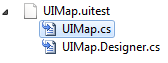
image

Let´s work over the next sample. Suppose we have defined a WPF button with dynamic text (current DateTime for instance, only for demo purposes). The following XAML is the static content of our main window application.

Code Snippet
<Grid>
    <TabControl>
        <TabItem Header="Tab 1">
            <Button>
                <ContentControl>
                    <StackPanel x:Name="ButtonStackPanel">
                        <TextBox>Text 1</TextBox>
                        <TextBox>Text 2</TextBox>
                        <Button Click="Button1_Click">Inner Button 1</Button>
                        <Button Click="Button2_Click">Inner Button 2</Button>
                        <ComboBox>
                            <ComboBoxItem Content="Item 1" IsSelected="True" />
                            <ComboBoxItem Content="Item 2" />
                            <ComboBoxItem Content="Item 3" />
                        </ComboBox>
                    </StackPanel>
                </ContentControl>
            </Button>
        </TabItem>
        <TabItem Header="Tab 2" />
        <TabItem Header="Tab 3" />
    </TabControl>
</Grid>

Then, by code we create a third button with dynamic text on it:

Code Snippet
public MainWindow()
{
    InitializeComponent();
    this.Loaded += (s, e) =>
    {
        var dynamicButton =
            new Button()
                {
                    Content = "Dynamic Button: " + DateTime.Now.ToString(),
                };
        dynamicButton.Click += (sender, args) => MessageBox.Show("Dynamic Button Click");
        this.ButtonStackPanel.Children.Add(dynamicButton);
    };
}

If your record actions using CodedUI wizard you will get something similar to the following search criteria:

this.mUIDynamicButton2602201Button = new WpfButton(this);
#region Search Criteria
this.mUIDynamicButton2602201Button.SearchProperties[WpfButton.PropertyNames.Name] = "Dynamic Button: 26/02/2011 06:22:29 p.m.";
this.mUIDynamicButton2602201Button.WindowTitles.Add("MainWindow");
#endregion

Try running the test and you’ll end up with an error on the button click (note the name attribute contains the current DateTime, thus every run will generate a different button name). This was expected of course.

So, lets modify the generated UI test code to find the control. In the UIMap.cs (non designer file), add the following code:

Code Snippet
public partial class UIMap
{
    public UIMap()
    {
        this.UIMainWindowWindow.UIItemTabList.UITab1TabPage.Find();
        var tabItemStackPanel = this.UIMainWindowWindow.UIItemTabList.UITab1TabPage.GetChildren()[0];
        var dynamicButton =
            tabItemStackPanel.GetChildren().FirstOrDefault(c => c.Name.Contains("Dynamic"));
        this.UIMainWindowWindow.UIItemTabList.UITab1TabPage.UIDynamicButton2602201Button.CopyFrom(dynamicButton);
    }
}
  1. The custom code is added in the constructor of the UIMap, but you can easily create an Init() method (recommended) and then call it before invoking the test.
  2. We first need to find the control by searching the children of the parent StackPanel (note in the XAML that the StackPanel is the first and only child of the TabItem).
  3. Once we’ve found the StackPanel we enumerate its children, by filtering the results by control name (we are looking for something that begins with the word “Dynamic”).
  4. Finally, we need to clear the recorded search properties values and add the correct name filter value. You can do this by copying the button’s definition (with the CopyFrom() method). This copies all properties from the just found button to the one used by the test.

Final notes..

  • This is a simple example to show how you can manually search and iterate through the entire UI structure of an application to find elements. You can do this by position, name, display text, control type, etc.
  • You can implement the same behavior to find any control in the hierarchy.
  • This API could be used to automate applications for any purpose (not only for tests).

Saturday, February 19, 2011

Overwriting TFS Web Services

In this blog I will share a technique I used to intercept TFS Web Services calls.

This technique is a very invasive one and requires you to overwrite default TFS Web Services behavior. I only recommend taking such an approach when other means of TFS extensibility fail to provide the same functionality (this is not a supported TFS extensibility point).

For instance, intercepting and aborting a Work Item change operation could be implemented using this approach (consider TFS Subscribers functionality before taking this approach, check Martin’s post about subscribers).

So let’s get started.

The technique consists in versioning TFS Web Services .asmx service classes. If you look into TFS’s ASMX services you will notice that versioning is supported by creating a class hierarchy between different product versions.

For instance, let’s take the Work Item management service .asmx. Check the following .asmx file located at:

%Program Files%\Microsoft Team Foundation Server 2010\Application Tier\Web Services\_tfs_resources\WorkItemTracking\v3.0\ClientService.asmx

The .asmx references the class Microsoft.TeamFoundation.WorkItemTracking.Server.ClientService3:

Code Snippet
  1. <%-- Copyright (c) Microsoft Corporation.  All rights reserved. --%>
  2. <%@ webservice language="C#" Class="Microsoft.TeamFoundation.WorkItemTracking.Server.ClientService3" %>

The inheritance hierarchy for this service class follows:

image

Note the naming convention used for service versioning (ClientService3, ClientService2, ClientService).

We will need to overwrite the latest service version provided by the product (in this case ClientService3 for TFS 2010).

The following example intercepts and analyzes WorkItem fields. Suppose we need to validate state changes with more advanced logic other than the provided validations/constraints of the process template.

Important: Backup the original .asmx file and create one of your own.

  1. Create a Visual Studio Web App Project and include a new ASMX Web Service in the project
  2. Add the following references to the project (check the folder %Program Files%\Microsoft Team Foundation Server 2010\Application Tier\Web Services\bin\):
    • Microsoft.TeamFoundation.Framework.Server.dll
    • Microsoft.TeamFoundation.Server.dll Microsoft.TeamFoundation.Server.dll
    • Microsoft.TeamFoundation.WorkItemTracking.Client.QueryLanguage.dll
    • Microsoft.TeamFoundation.WorkItemTracking.Server.DataAccessLayer.dll
    • Microsoft.TeamFoundation.WorkItemTracking.Server.DataServices.dll
  3. Replace the default service implementation with the something similar to the following code:
Code Snippet
  1. /// <summary>
  2.     /// Inherit from ClientService3 to overwrite default Implementation
  3.     /// </summary>
  4.     [WebService(Namespace = "http://schemas.microsoft.com/TeamFoundation/2005/06/WorkItemTracking/ClientServices/03", Description = "Custom Team Foundation WorkItemTracking ClientService Web Service")]
  5.     public class CustomTfsClientService : ClientService3
  6.     {
  7.         [WebMethod, SoapHeader("requestHeader", Direction = SoapHeaderDirection.In)]
  8.         public override bool BulkUpdate(
  9.             XmlElement package,
  10.             out XmlElement result,
  11.             MetadataTableHaveEntry[] metadataHave,
  12.             out string dbStamp,
  13.             out Payload metadata)
  14.         {
  15.             var xe = XElement.Parse(package.OuterXml);
  16.             
  17.             // We only intercept WorkItems Updates (we can easily extend this sample to capture any operation).
  18.             var wit = xe.Element("UpdateWorkItem");
  19.             if (wit != null)
  20.             {
  21.                 if (wit.Attribute("WorkItemID") != null)
  22.                 {
  23.                     int witId = (int)wit.Attribute("WorkItemID");
  24.                     // With this Id. I can query TFS for more detailed information, using TFS Client API (assuming the WIT already exists).
  25.                     var stateChanged =
  26.                         wit.Element("Columns").Elements("Column").FirstOrDefault(c => (string)c.Attribute("Column") == "System.State");
  27.  
  28.                     if (stateChanged != null)
  29.                     {
  30.                         var newStateName = stateChanged.Element("Value").Value;
  31.                         if (newStateName == "Resolved")
  32.                         {
  33.                             throw new Exception("Cannot change state to Resolved!");
  34.                         }
  35.                     }
  36.                 }
  37.             }
  38.  
  39.             // Finally, we call base method implementation
  40.             return base.BulkUpdate(package, out result, metadataHave, out dbStamp, out metadata);
  41.         }
  42.     }

4. Build your solution and overwrite the original .asmx with the new implementation referencing our new service version (don’t forget to backup it up first).

5. Copy your project’s .dll into the following path:

%Program Files%\Microsoft Team Foundation Server 2010\Application Tier\Web Services\bin

6. Try saving a WorkItem into the Resolved state.

Enjoy!